Custom button map
Which functions belong on the EOS R50's buttons?
Buttons on one desk, the ring on another
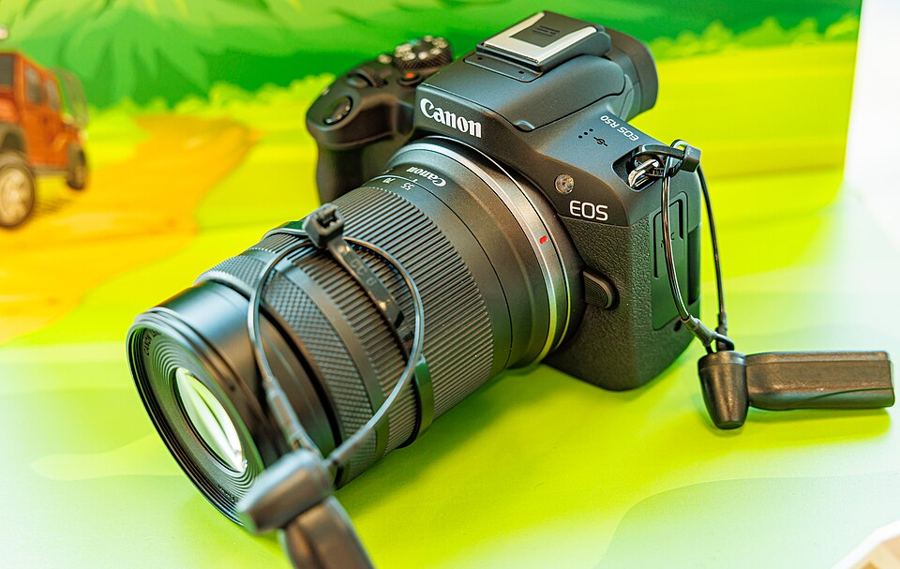
Canon splits the job: Customize buttons for the buttons, Customize control ring beside it for the lens ring — there is no dials desk on a one-dial body. The same button can carry a different function for stills and for movies — build both sets. Movie button (stills set): Start/stop whole area AF tracking. Control ring: Select AF area. Down key: Eye detection.
One press picks your subject
Start/stop whole area AF tracking on the movie button (stills set) is Canon’s documented workflow: press, and the tracking frame locks onto your subject and follows it across the entire screen, regardless of the AF area in use. Press again to release. With several people detected, the cross keys walk the frame to your person.
The ring takes the area
Select AF area on the control ring switches areas at the lens, eye still up — the trade is the ring’s factory job, exposure compensation in the Creative Zone modes. Know the absence: there is no Direct AF point selection function on this body. The point is hardware — the AF point selection button plus the cross keys, or touch and drag.
Down key — Eye detection
Eye detection engages eye focus with one press. It can live on the movie button, the ISO button, any cross key, or a lens button — the Down key is its natural home here, the one cross key with no shooting job of its own (its Erase label belongs to playback). The cross keys’ factory jobs are worth knowing before you reassign any of them: Left switches focus mode, Right picks the drive mode.
The map stays
Customize buttons settings are not cleared even by Clear all Custom Func. (C.Fn) — the manual says so. Only Clear customized settings wipes them. There is no C1 registration for stills on this body, and the map does not need one: build it once and it persists.
Set the movie button’s stills assignment to Start/stop whole area AF tracking, then practice picking one person out of a group before adding the rest of the map.