Why Your Prints Never Match Your Screen — and How to Fix It
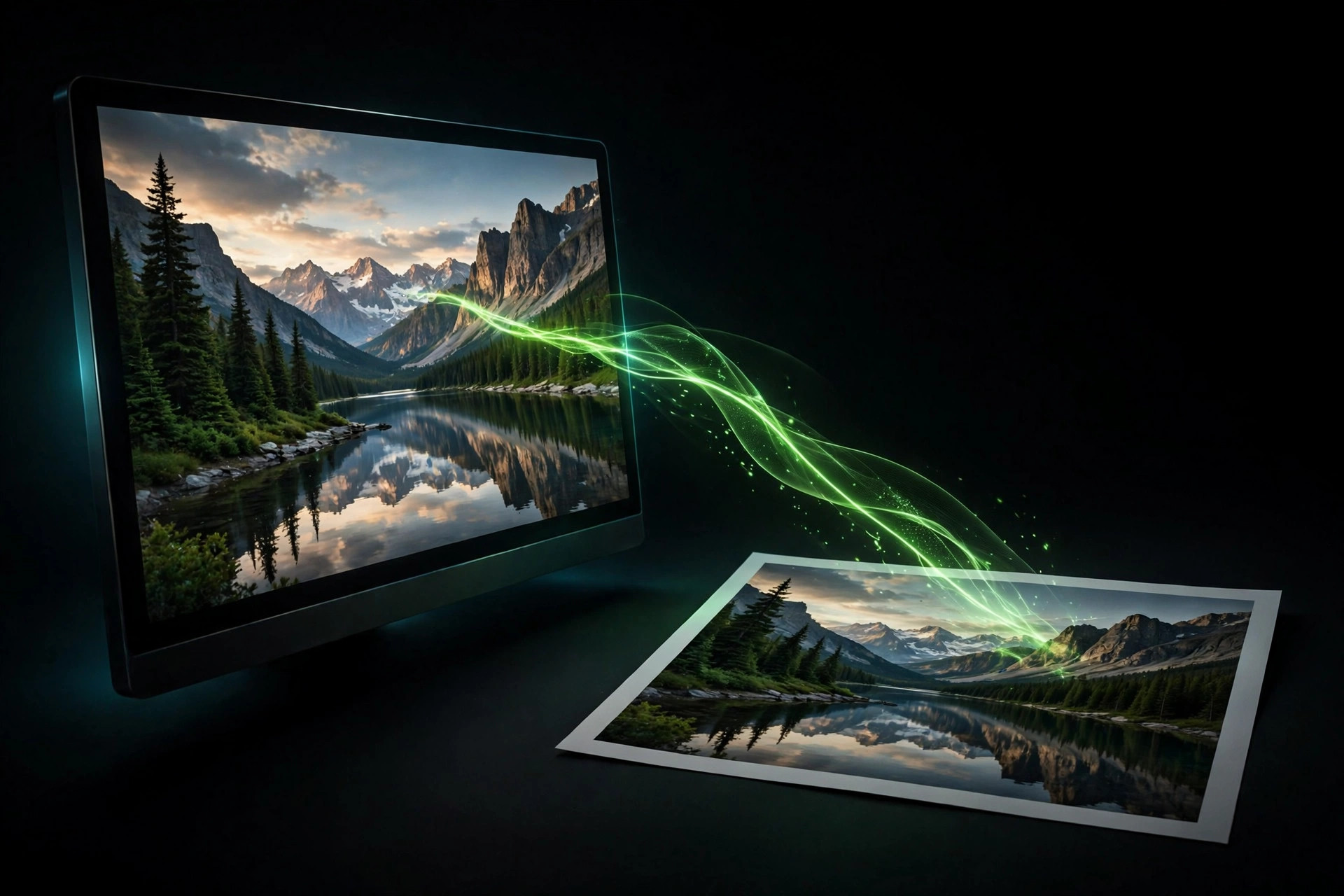
Why does the print never look like the screen?
It comes down to gamut — the range of colors a device can reproduce. A monitor and a printer overlap a lot, but they produce color in opposite ways. The monitor is additive and always the brightest, most vivid version of your image. Ink on paper is subtractive, and the result depends partly on the light you view it under.
This is the job of color management, and it is worth understanding what it actually does. It does not bridge the gap between monitor and paper. It shows you, on your monitor, what to expect from the paper once you print. Everything else is just tuning that preview until you can trust it.
What actually makes the preview trustworthy?
The single biggest lever is a calibrated monitor. A color calibrator measures your screen against a predetermined standard and closes the gap between what you see and what prints, even on a modest display. Without that, every downstream setting is guesswork.
Then comes soft proofing. In your editor, soft proofing renders an approximation of the image under a specific paper's ICC profile — the file that describes exactly what a given printer-and-paper combination does. Switch profiles and the image shifts: glossy stays vivid, while something like Japanese washi paper goes noticeably more desaturated with milky shadows. That shift is the truth of the paper. Grading under the profile you will print with means no surprises.
Who should manage the color — the software or the printer?
Pick one or the other, never both. If your editing software manages color, hand the printer the most accessible profile you have, usually Adobe RGB or sRGB, and switch color management off on the printer side. Running both applies two conversions stacked on top of each other, which is where mysterious color casts come from.
Windows makes this easier to get wrong than Mac — the dialogs offer more ways to manage color from the printer, so you have to check. And wherever color is managed, the paper type you select must match the paper you loaded: porosity and coating decide how much ink lands and how it adheres, and borderless prints need it to keep ink where it belongs.
What about resolution and rendering intent?
All you really need is 300 dpi. Higher settings print microscopic detail the eye won't catch on a framed photo, and 'best' quality mostly just drinks more ink without a perceptible change — normal saves real money on expensive cartridges. Add a little output sharpening on top of whatever you did in the editor; zero still looks good but reads slightly hazier than the screen version.
Rendering intent is the one setting worth thinking about: perceptual squeezes all colors uniformly into what the ink can reproduce, staying closest to what you see on screen, while relative colorimetric keeps in-gamut tones exact and truncates the rest. Perceptual is the safe default.
Why it matters for you
Printing is where your photography becomes a physical object, and every mismatch between screen and paper trains you to distrust your own editing. Lock in the chain — calibrate once, soft-proof before you print, manage color in exactly one place, and set the paper type — and the print becomes predictable. Then your editing decisions finally mean something, because what you see is what you get.